Network Observability
Overview
AWS provides a layered set of network observability tools that together give visibility into traffic patterns, performance degradation, and internet-path health across your VPCs, hybrid connections, and end-user paths. This entry covers the four primary capabilities and when to use each.
VPC Flow Logs capture metadata (source/destination IPs, ports, protocols, bytes, actions) for traffic flowing through your VPCs. They are the foundation for security analysis, compliance auditing, and traffic-pattern discovery. Flow Logs publish to CloudWatch Logs, S3, or Kinesis Data Firehose.
Network Flow Monitor deploys lightweight eBPF agents on EC2/EKS instances to passively measure TCP performance (RTT, packet loss, retransmissions) from real workload traffic. Its Network Health Indicator (NHI) tells you whether AWS infrastructure or your own workload caused a degradation — without opening a support case.
Internet Monitor overlays your resource traffic profile (VPC, CloudFront, NLB) onto AWS's global connectivity measurements to surface internet-path degradation by city, ISP, and geography. No agents or code changes are required.
Network Synthetic Monitor sends active ICMP/TCP probes from VPC subnets to on-premises destinations reachable via Direct Connect or Site-to-Site VPN, providing continuous RTT and packet-loss metrics for hybrid connectivity.
Prerequisites
- An AWS account with VPC resources deployed
- IAM permissions:
ec2:CreateFlowLogs,logs:CreateLogGroup,cloudwatch:*,networkmonitor:* - For Network Flow Monitor: EC2 or EKS instances running Amazon Linux 2/2023 or Ubuntu 20.04+ (eBPF agent requirement)
- For Network Synthetic Monitor: a VPC subnet with connectivity to on-premises destinations via Direct Connect or Site-to-Site VPN
- AWS CLI v2 installed and configured
Architecture
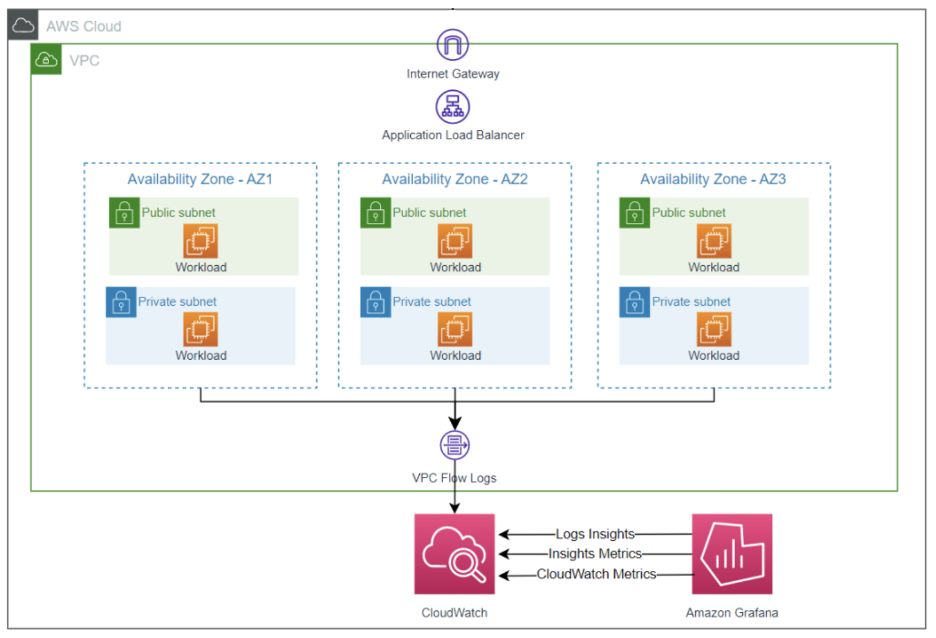
┌────────────────────────────────────────────────────────────────────────┐
│                          AWS Region                                     │
│                                                                        │
│  ┌──────────┐    ┌──────────┐    ┌──────────┐    ┌──────────────────┐ │
│  │  EC2/EKS │    │  EC2/EKS │    │   VPC    │    │  Direct Connect  │ │
│  │(eBPF Agt)│    │(eBPF Agt)│    │ ENIs     │    │  / VPN Endpoint  │ │
│  └────┬─────┘    └────┬─────┘    └────┬─────┘    └────────┬─────────┘ │
│       │                │               │                    │          │
│       ▼                ▼               ▼                    ▼          │
│  ┌─────────────┐  ┌─────────────┐  ┌─────────────┐  ┌─────────────┐  │
│  │ Network Flow│  │  Internet   │  │  VPC Flow   │  │  Synthetic  │  │
│  │   Monitor   │  │   Monitor   │  │    Logs     │  │   Monitor   │  │
│  └──────┬──────┘  └──────┬──────┘  └──────┬──────┘  └──────┬──────┘  │
│         │                 │                │                 │          │
│         └─────────────────┴────────────────┴─────────────────┘          │
│                                    │                                    │
│                                    ▼                                    │
│                         ┌───────────────────┐                          │
│                         │    CloudWatch      │                          │
│                         │ (Metrics + Logs)   │                          │
│                         └───────────────────┘                          │
└────────────────────────────────────────────────────────────────────────┘
                                    │
              ┌─────────────────────┼──────────────────────┐
              ▼                     ▼                       ▼
     ┌──────────────┐    ┌──────────────────┐    ┌──────────────────┐
     │  Dashboards  │    │  Alarms / Events │    │  S3 (archival)   │
     └──────────────┘    └──────────────────┘    └──────────────────┘
Deploy
Step 1: Enable VPC Flow Logs
# Create a CloudWatch Logs log group
aws logs create-log-group --log-group-name /aws/vpc/flow-logs

# Create a flow log for a VPC (all traffic, default format)
aws ec2 create-flow-logs \
  --resource-type VPC \
  --resource-ids vpc-0123456789abcdef0 \
  --traffic-type ALL \
  --log-destination-type cloud-watch-logs \
  --log-group-name /aws/vpc/flow-logs \
  --deliver-logs-permission-arn arn:aws:iam::ACCOUNT_ID:role/flowlogsRole
For custom fields (recommended), see VPC Flow Logs — Custom Format.
Step 2: Install Network Flow Monitor agents
Install via AWS Systems Manager (recommended):
aws ssm send-command \
  --document-name "AWS-ConfigureAWSPackage" \
  --targets "Key=instanceids,Values=i-0123456789abcdef0" \
  --parameters '{"action":["Install"],"name":["AmazonCloudWatchNetworkFlowMonitorAgent"]}'
Wait ~10 minutes for Workload Insights data to appear, then create a monitor in the console scoping local and remote resources.
Step 3: Create an Internet Monitor
aws internetmonitor create-monitor \
  --monitor-name my-app-monitor \
  --resources "arn:aws:ec2:us-east-1:ACCOUNT_ID:vpc/vpc-0123456789abcdef0" \
  --max-city-networks-to-monitor 500
Step 4: Create a Network Synthetic Monitor (hybrid only)
aws networkmonitor create-monitor --monitor-name hybrid-latency

aws networkmonitor create-probe \
  --monitor-name hybrid-latency \
  --probe '{"sourceArn":"arn:aws:ec2:us-east-1:ACCOUNT_ID:subnet/subnet-abc123","destination":"10.0.1.1","protocol":"ICMP","packetSize":56}'
Validate
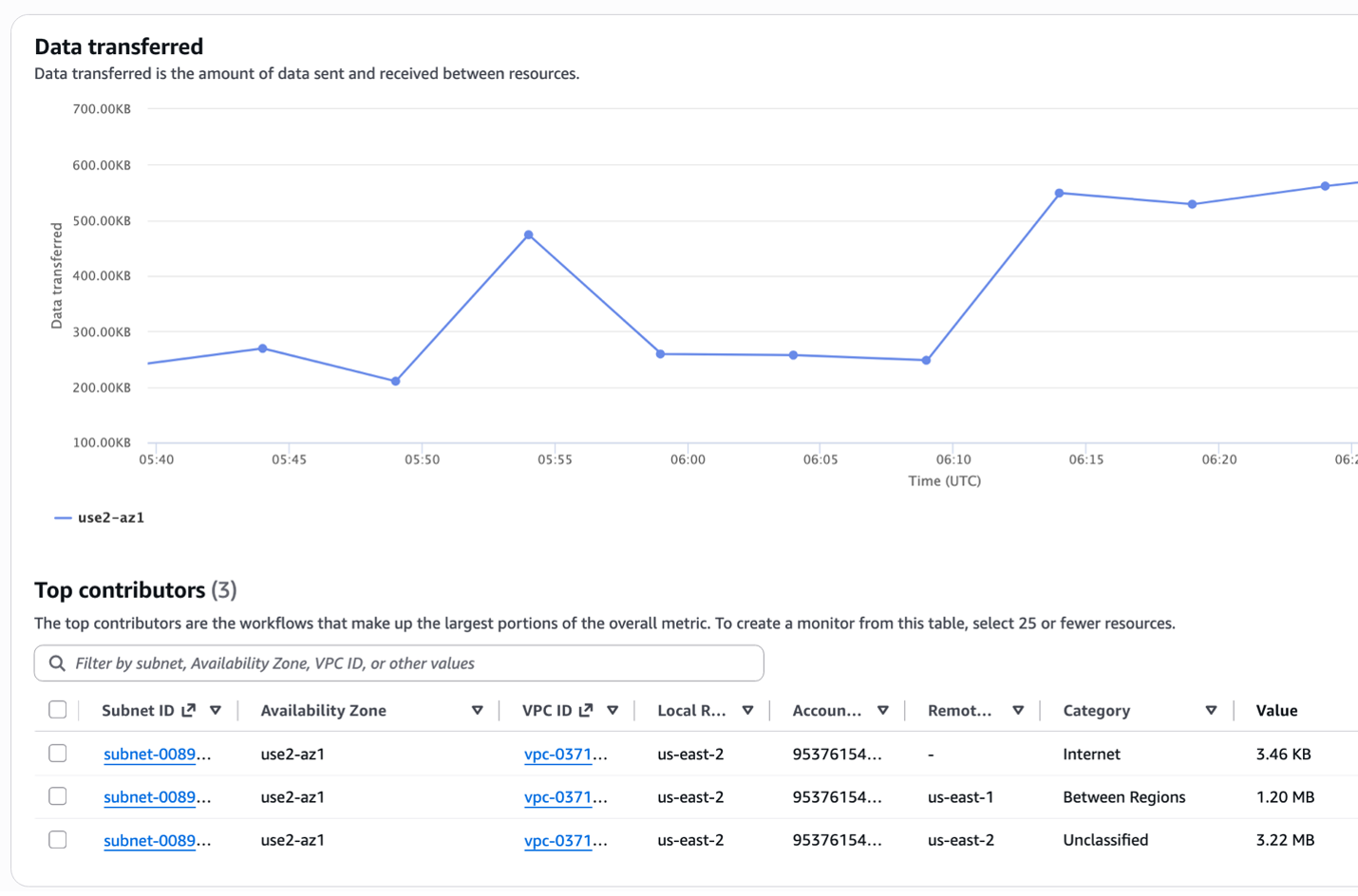
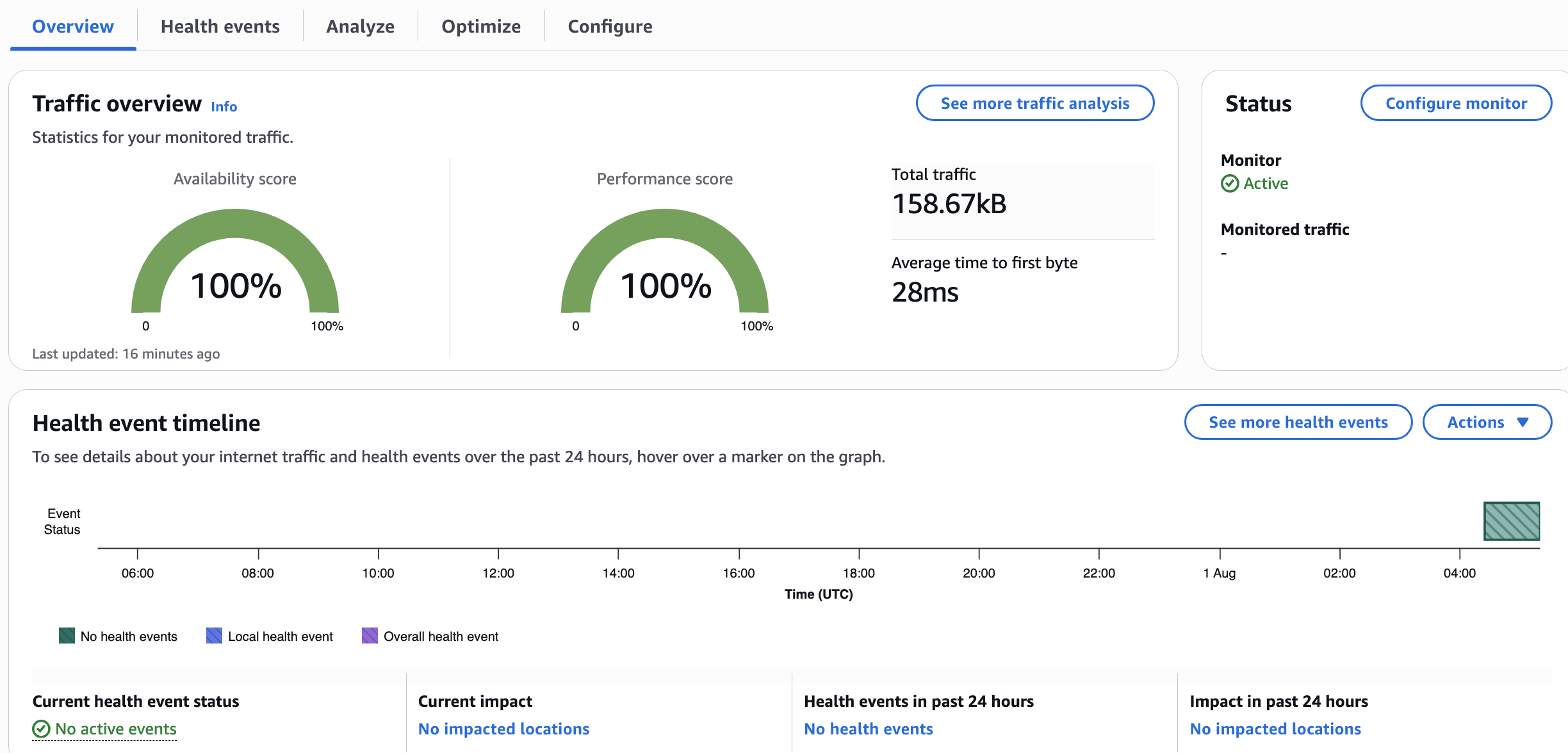
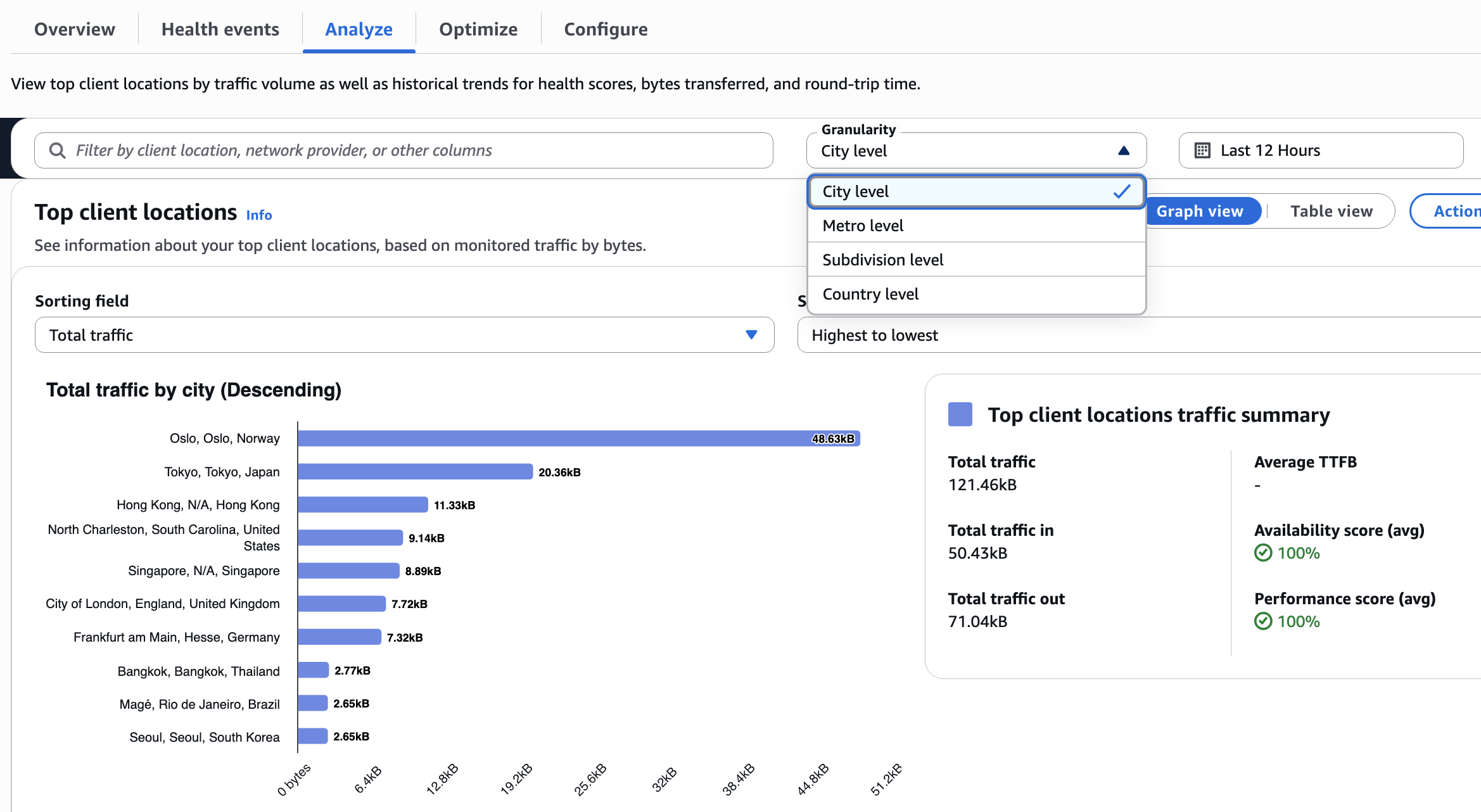
-
VPC Flow Logs: After 5–10 minutes, query the log group:
aws logs filter-log-events \
  --log-group-name /aws/vpc/flow-logs \
--limit 5 -
Network Flow Monitor: Open the CloudWatch console → Network Monitoring → Flow Monitor. Confirm Workload Insights shows data under Data Transferred and Retransmissions.
-
Internet Monitor: Open CloudWatch → Internet Monitor → your monitor. Verify a Performance Score and Availability Score are displayed on the overview tab.
-
Synthetic Monitor: Check CloudWatch metrics namespace
AWS/NetworkMonitorforPacketLossandRoundTripTimemetrics:aws cloudwatch get-metric-statistics \
--namespace AWS/NetworkMonitor \
--metric-name RoundTripTime \
--dimensions Name=MonitorName,Value=hybrid-latency \
--start-time $(date -u -v-1H +%Y-%m-%dT%H:%M:%S) \
--end-time $(date -u +%Y-%m-%dT%H:%M:%S) \
--period 300 --statistics Average
Troubleshoot
| Symptom | Likely Cause | Fix |
|---|---|---|
| No flow log records after 15 min | IAM role missing logs:CreateLogStream / logs:PutLogEvents | Verify the flow logs delivery role trust policy allows vpc-flow-logs.amazonaws.com |
| Network Flow Monitor shows no data | Agent not installed or instance profile missing | Confirm agent is running (systemctl status amazon-cloudwatch-network-flow-monitor-agent) and instance role has cloudwatch:PutMetricData |
| Internet Monitor shows 0 city-networks | Resource has no internet-facing traffic | Ensure the VPC/CloudFront resource handles public traffic; internal-only VPCs won't generate city-network data |
| Synthetic Monitor probe failing | Security group blocks ICMP/TCP to destination | Add an outbound rule on the subnet's SG for the probe protocol/port to the destination IP |
| NHI stays at 0 but app is slow | Degradation is in your workload, not AWS network | The NHI only flags AWS infrastructure issues; investigate application-layer or DNS latency |
Related Solutions
- EC2 Monitoring — OS and application-level metrics for EC2 instances
- EKS Infrastructure — Kubernetes cluster and pod-level monitoring