Systems Manager Run Command में कस्टम Windows उपयोगकर्ता के रूप में PowerShell कमांड चलाना
डिफ़ॉल्ट रूप से, Systems Manager Run Command Windows मैनेज्ड नोड्स पर कमांड चलाने के लिए लोकल SYSTEM अकाउंट का उपयोग करता है। हालाँकि, कुछ परिदृश्यों में, ऑपरेशन इंजीनियरों को कमांड चलाते समय कस्टम उपयोगकर्ता अनुमतियों की आवश्यकता होती है। उदाहरण के लिए, Active Directory Domain कार्यों को चलाने या कमांड सेशन के लिए विशेषाधिकारों को सीमित करने के लिए।
PowerShell में उपयोगकर्ता क्रेडेंशियल्स को संभालते समय, हम उन्हें AWS Secrets Manager में संग्रहीत करने और स्क्रिप्ट से प्रोग्रामेटिक रूप से प्राप्त करने की सलाह देते हैं। इससे निष्पादन के किसी भी बिंदु पर क्रेडेंशियल्स को प्लेन टेक्स्ट में उजागर करने से बचा जा सकता है।
मैनेज्ड नोड के पास Secrets Manager में सीक्रेट तक पहुँचने की अनुमतियाँ होनी चाहिए। अनुमतियाँ EC2 IAM इंस्टेंस प्रोफ़ाइल, आपकी Default Host Management Configuration (DHMC) सर्विस सेटिंग में निर्दिष्ट IAM सर्विस रोल, या हाइब्रिड मैनेज्ड नोड के लिए IAM सर्विस रोल को दी जा सकती हैं। अधिक जानकारी के लिए, AWS Secrets Manager में सीक्रेट्स के लिए IAM पॉलिसी उदाहरण देखें।
नीचे दिया गया उदाहरण Secrets Manager से Domain क्रेडेंशियल्स प्राप्त करने और उन क्रेडेंशियल्स के साथ PowerShell स्क्रिप्ट चलाने की स्क्रिप्ट दिखाता है:
# Retrieves AWS Secrets Manager secret
$SecretContent = Get-SECSecretValue -SecretId <SECRET_ARN> -ErrorAction Stop | Select-Object -ExpandProperty 'SecretString' | ConvertFrom-Json -ErrorAction Stop

# Creates credentials object
$Username = $SecretContent.username
$UserPassword = ConvertTo-SecureString ($SecretContent.password) -AsPlainText -Force
$Credentials = New-Object -TypeName 'System.Management.Automation.PSCredential' ($Username, $UserPassword)

# Run commands with Domain Credentials
Invoke-Command -Authentication 'CredSSP' `
    -ComputerName $env:COMPUTERNAME `
    -Credential $Credentials `
    -ScriptBlock {Write-Host "Logged in as:"$(whoami)}
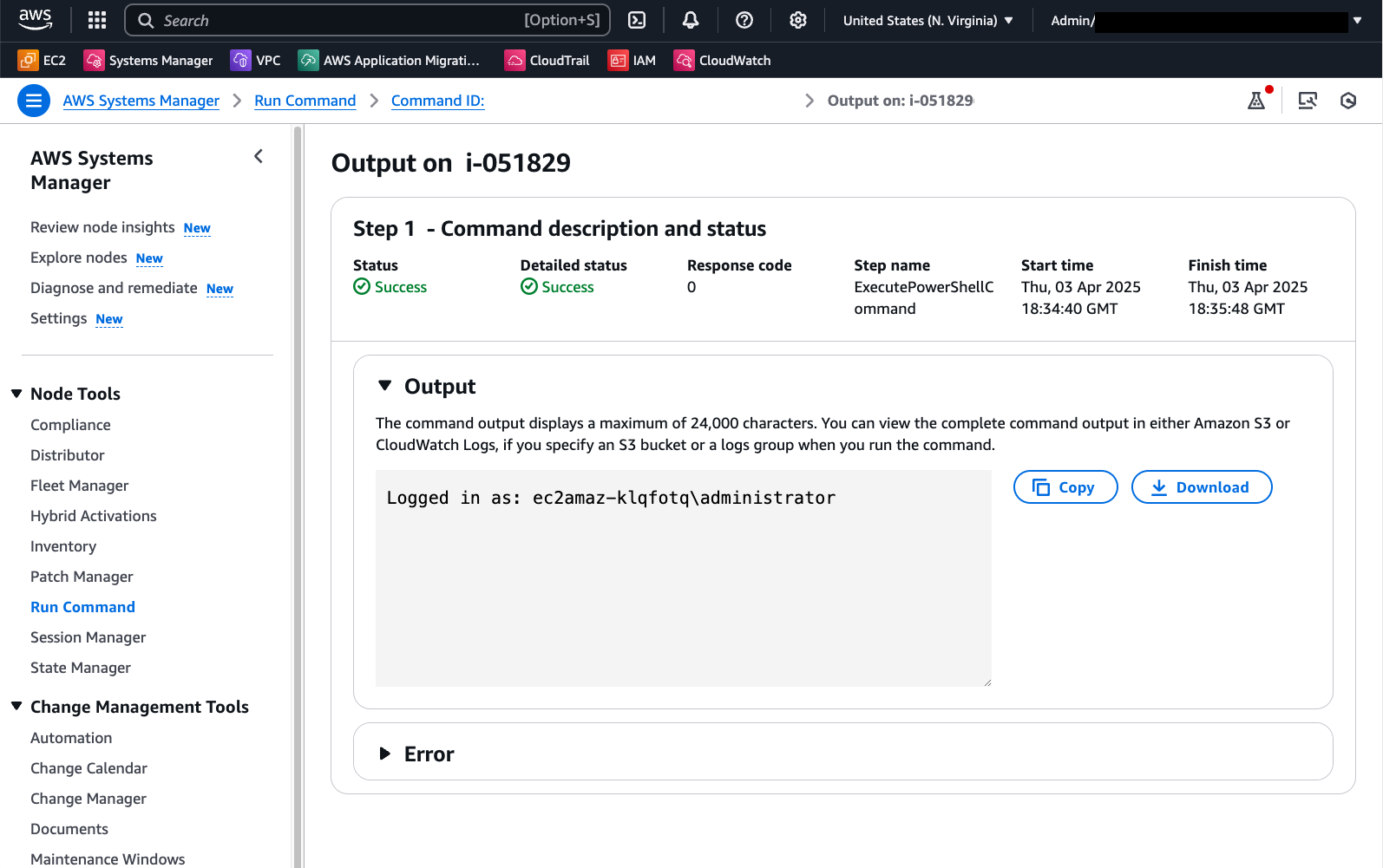
Run Command में आउटपुट वांछित डोमेन उपयोगकर्ता के रूप में सफल लॉगिन दिखाता है:
एक अन्य विकल्प PowerShell Session (PSSession) का उपयोग करना है। निम्नलिखित कोड भी Secrets Manager का उपयोग करके Local Administrator क्रेडेंशियल्स प्राप्त करता है और इस संदर्भ में कमांड चलाता है:
# Retrieves AWS Secrets Manager secret
$SecretContent = Get-SECSecretValue -SecretId <SECRET_ARN> -ErrorAction Stop | Select-Object -ExpandProperty 'SecretString' | ConvertFrom-Json -ErrorAction Stop

# Creates credentials object
$Username = $SecretContent.username
$UserPassword = ConvertTo-SecureString ($SecretContent.password) -AsPlainText -Force
$Credentials = New-Object -TypeName 'System.Management.Automation.PSCredential' ("$Env:ComputerName\$Username", $UserPassword)

# Creates a new PowerShell session on the local computer using provided credentials
$Session = New-PSSession -ComputerName $Env:ComputerName -Credential $Credentials -ErrorAction Stop

# Runs a command in the remote session to start a process and wait for completion
Invoke-Command -Session $Session -ScriptBlock { Write-Host "Logged in as: $env:USERNAME" }
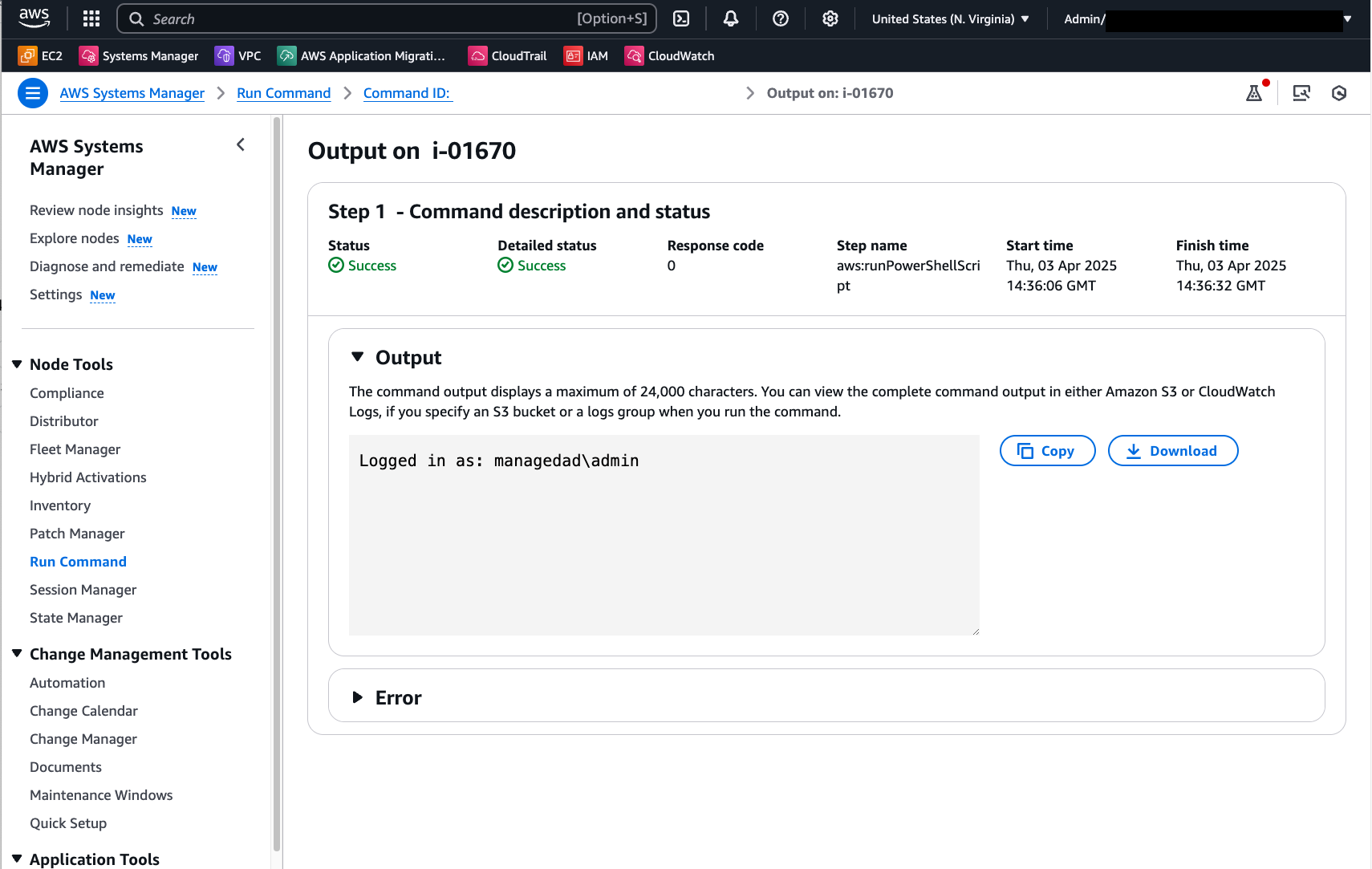
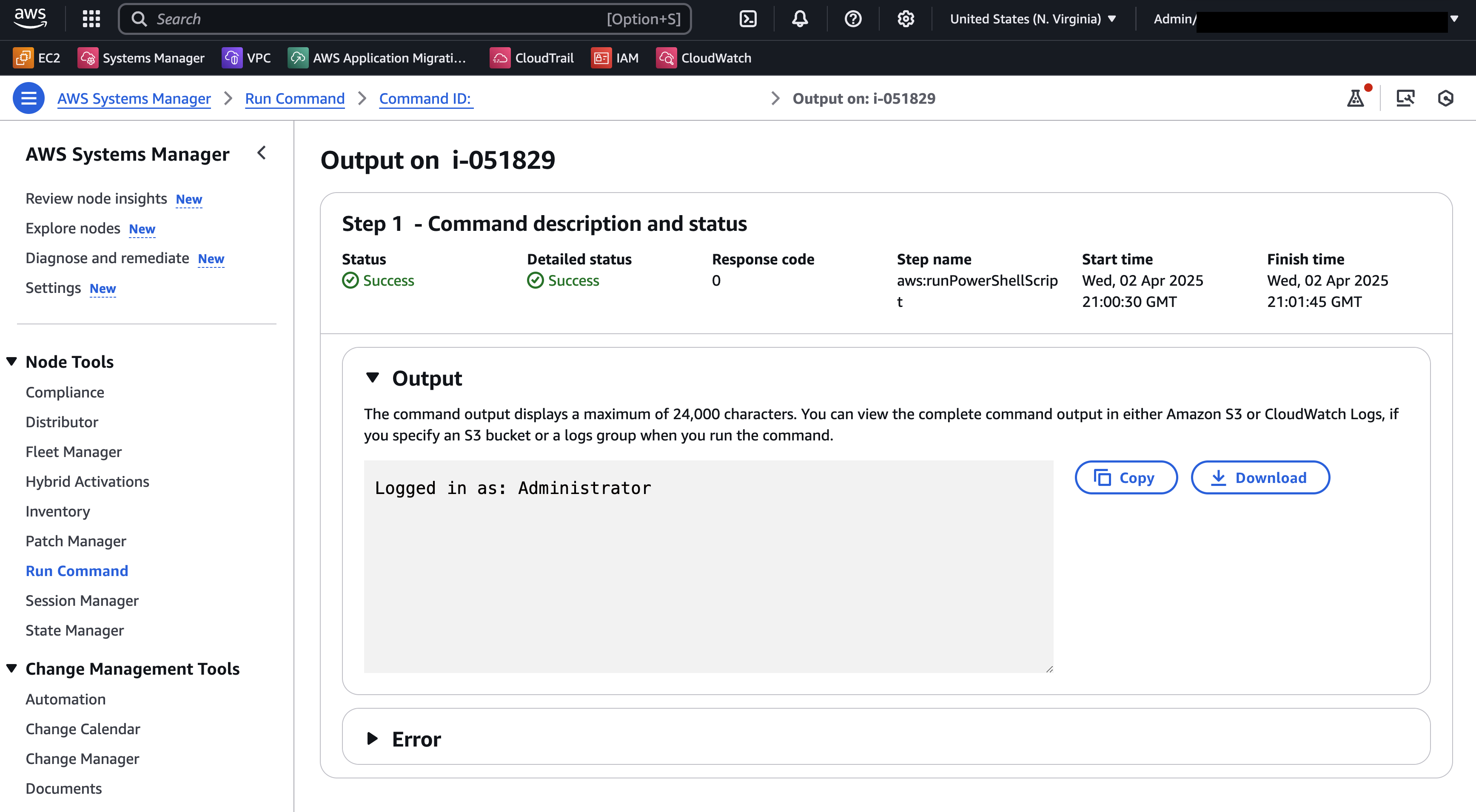
नीचे दी गई इमेज इस PowerShell स्क्रिप्ट को चलाने के बाद Run Command आउटपुट दिखाती है:
इन उदाहरणों में उपयोग किया गया Secrets Manager सीक्रेट निम्नलिखित key/value pair प्रारूप में क्रेडेंशियल्स संग्रहीत करता है:
{"username":"XXXXXXXXX","password":"XXXXXXX"}
Secrets Manager सीक्रेट बनाने के बारे में अधिक विवरण यहाँ प्राप्त करें।
कस्टम क्रेडेंशियल्स स्वचालित रूप से ग्रहण करने और PowerShell स्क्रिप्ट चलाने के लिए कस्टम Run Command डॉक्यूमेंट का उपयोग करें
सीक्रेट प्राप्ति और क्रेडेंशियल्स मैनिपुलेशन को स्वचालित करने के लिए, आप नीचे दी गई सामग्री के साथ एक कस्टम Run Command डॉक्यूमेंट बना सकते हैं:
schemaVersion: '2.2'
description: "Command document example to retrieve a secret from AWS Secrets Manager and run a PowerShell command using the credentials"
parameters:
  SecretId:
    type: String
    description: The ARN or name of the secret to retrieve. To retrieve a secret from another account, you must use an ARN.
    default: Secret ARN or Name
  Command:
    type: String
    description: "Run a PowerShell script."
    default: Write-Host "Logged in as:"$(whoami)
    displayType: textarea
mainSteps:
  - action: aws:runPowerShellScript
    name: ExecutePowerShellCommand
    inputs:
      runCommand:
        - |
           # Retrieves AWS Secrets Manager secret
            $SecretContent = Get-SECSecretValue -SecretId {{SecretId}} -ErrorAction Stop | Select-Object -ExpandProperty 'SecretString' | ConvertFrom-Json -ErrorAction Stop

            # Creates credentials object
            $Username = $SecretContent.username
            $UserPassword = ConvertTo-SecureString ($SecretContent.password) -AsPlainText -Force
            $Credentials = New-Object -TypeName 'System.Management.Automation.PSCredential' ("$Env:ComputerName\$Username", $UserPassword)

            # Creates a new PowerShell session on the local computer using provided credentials
            $Session = New-PSSession -ComputerName $Env:ComputerName -Credential $Credentials -ErrorAction Stop

            # Runs a command in the remote session to start a process and wait for completion
            Invoke-Command -Session $Session -ScriptBlock { {{Command}} } -ErrorAction Stop
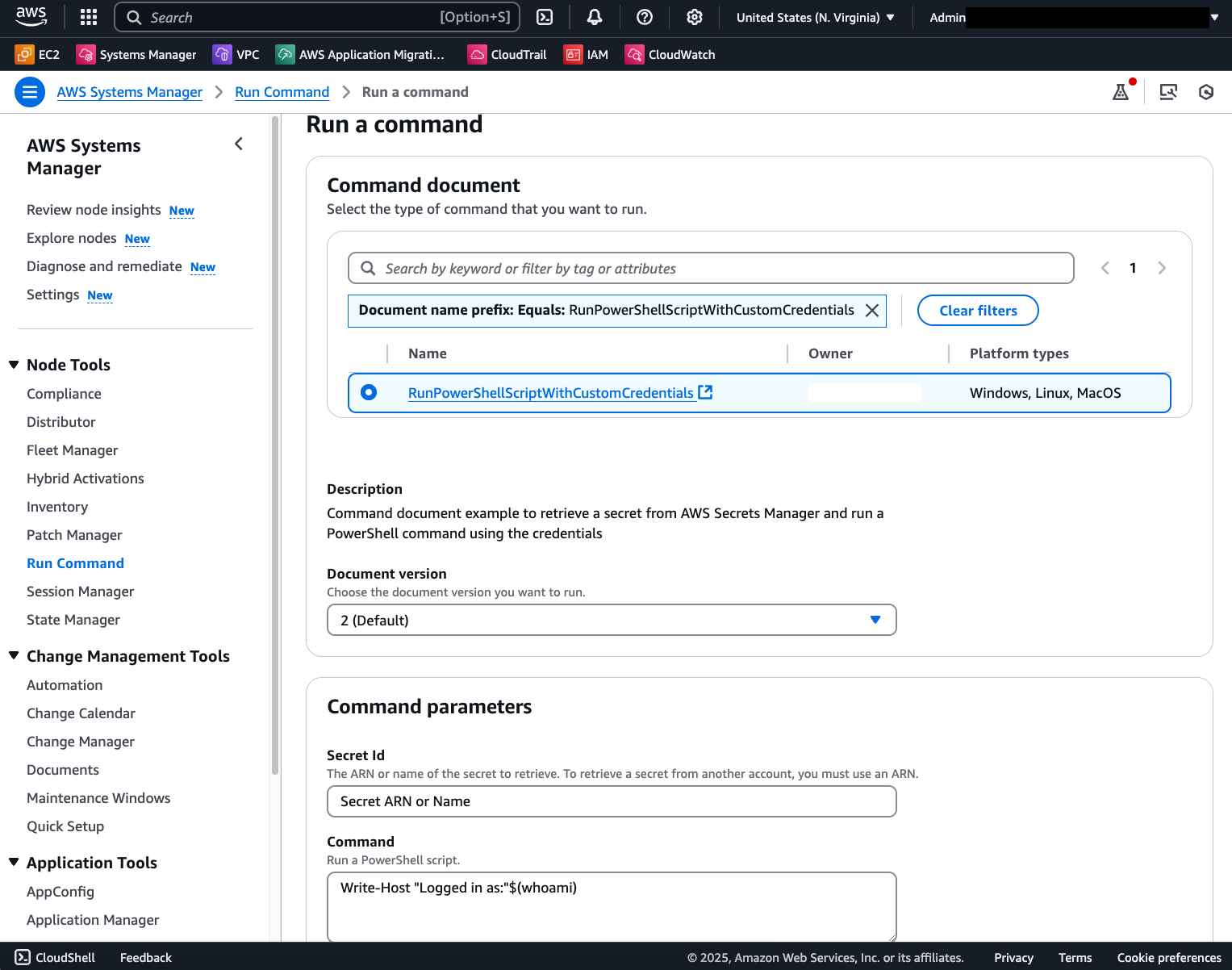
परिणामस्वरूप, आपके पास एक टेम्पलेट डॉक्यूमेंट होगा जिसमें प्रत्येक आह्वान के लिए केवल Secret ARN और स्क्रिप्ट सामग्री की आवश्यकता होती है:
एक सफल कमांड आह्वान निम्नलिखित परिणाम दिखाएगा: