Systems Manager Run Command でカスタム Windows ユーザーとして PowerShell コマンドを呼び出す
デフォルトでは、Systems Manager Run Command はローカルを使用します SYSTEM Windows マネージドノードでコマンドを実行するためのアカウント。ただし、特定のシナリオでは、オペレーションエンジニアがコマンドを実行する際にカスタムユーザー権限を必要とする場合があります。たとえば、Active Directory ドメインタスクを実行する場合や、コマンドセッションの権限を制限する場合などです。
PowerShell でユーザー認証情報を扱う場合は、AWS Secrets Manager に保存し、スクリプトからプログラムで取得することをお勧めします。これにより、実行のいかなる時点においても、認証情報が平文で公開されることを防ぎます。
マネージドノードは、Secrets Manager のシークレットにアクセスするための権限を持っている必要があります。権限は、アタッチされた EC2 IAM インスタンスプロファイル、デフォルトホスト管理設定 (DHMC) サービス設定で指定された IAM サービスロール、またはハイブリッドマネージドノードの IAM サービスロールに付与できます。詳細については、AWS Secrets Manager のシークレットに関する IAM ポリシーの例を参照してください。
以下の例は、Secrets Manager からドメイン資格情報を取得し、その資格情報を使用して PowerShell スクリプトを実行するスクリプトを示しています。
# Retrieves AWS Secrets Manager secret
$SecretContent = Get-SECSecretValue -SecretId <SECRET_ARN> -ErrorAction Stop | Select-Object -ExpandProperty 'SecretString' | ConvertFrom-Json -ErrorAction Stop

# Creates credentials object
$Username = $SecretContent.username
$UserPassword = ConvertTo-SecureString ($SecretContent.password) -AsPlainText -Force
$Credentials = New-Object -TypeName 'System.Management.Automation.PSCredential' ($Username, $UserPassword)

# Run commands with Domain Credentials
Invoke-Command -Authentication 'CredSSP' `
    -ComputerName $env:COMPUTERNAME `
    -Credential $Credentials `
    -ScriptBlock {Write-Host "Logged in as:"$(whoami)}
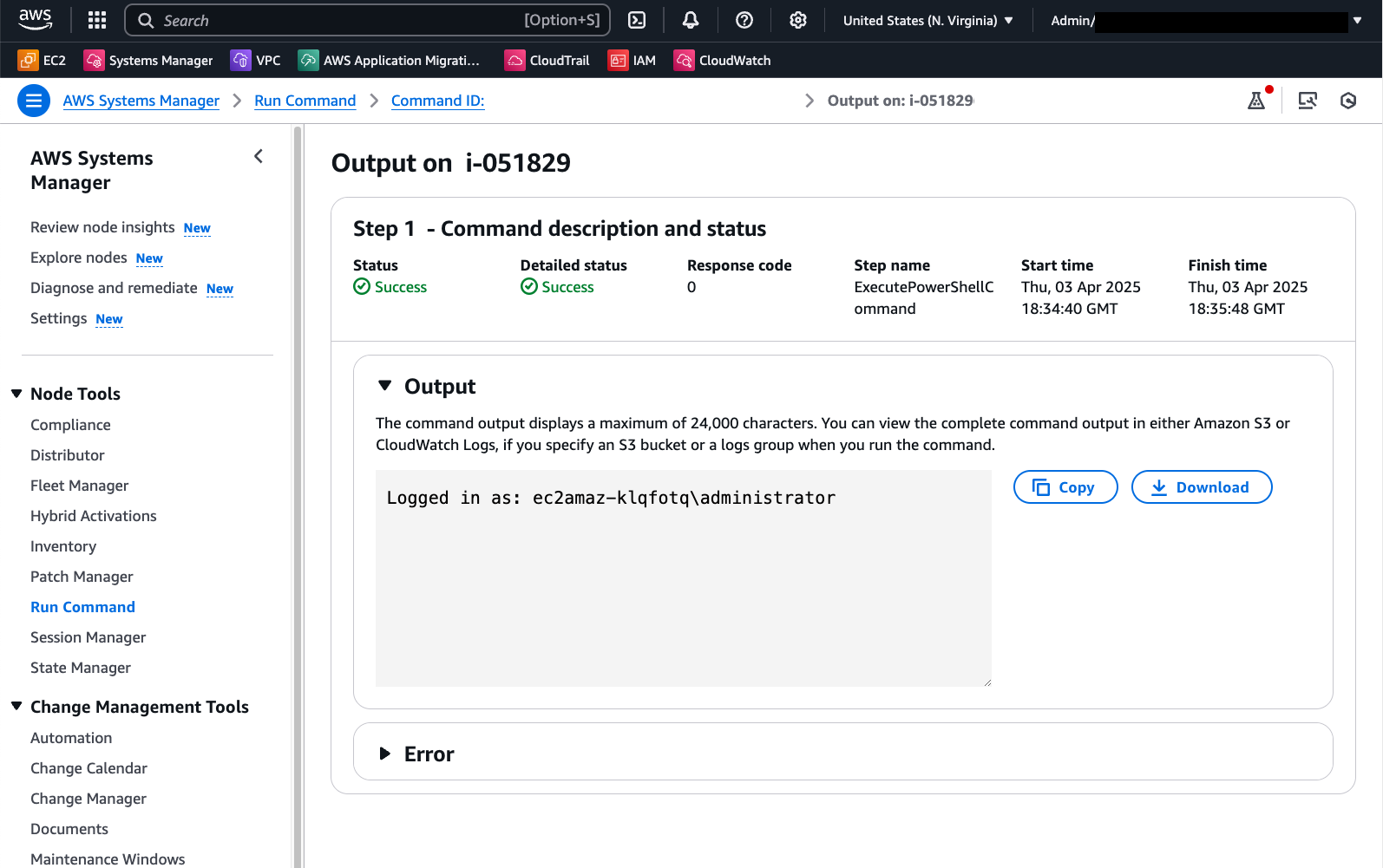
Run Command の出力には、目的のドメインユーザーとしてのログイン成功が表示されます。
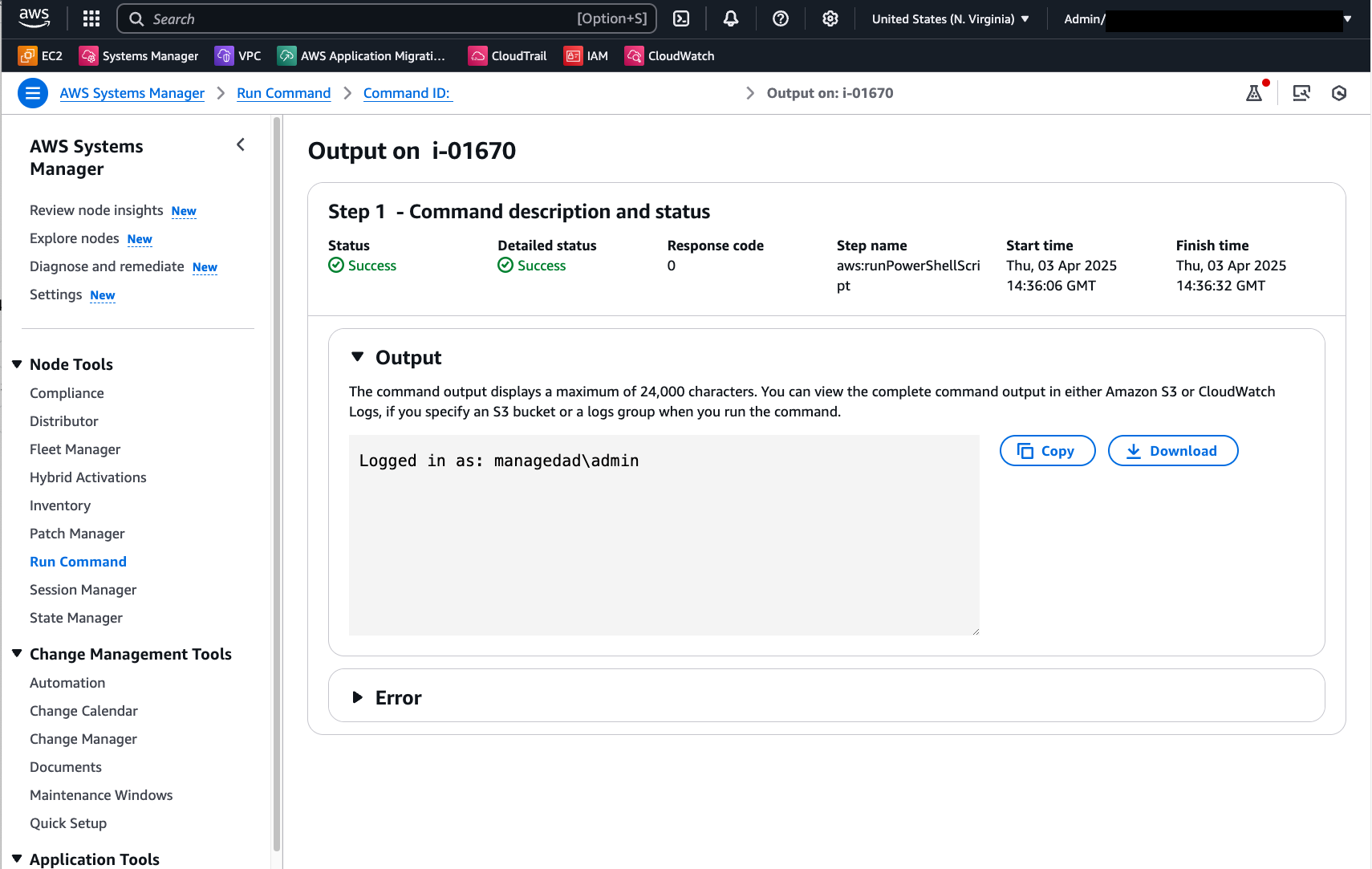
もう一つの代替手段は、PowerShell セッション (を使用することです。PSSession)。次のコードでは、Secrets Manager を使用してローカル管理者の認証情報を取得し、このコンテキストでコマンドを実行します。
# Retrieves AWS Secrets Manager secret
$SecretContent = Get-SECSecretValue -SecretId <SECRET_ARN> -ErrorAction Stop | Select-Object -ExpandProperty 'SecretString' | ConvertFrom-Json -ErrorAction Stop

# Creates credentials object
$Username = $SecretContent.username
$UserPassword = ConvertTo-SecureString ($SecretContent.password) -AsPlainText -Force
$Credentials = New-Object -TypeName 'System.Management.Automation.PSCredential' ("$Env:ComputerName\$Username", $UserPassword)

# Creates a new PowerShell session on the local computer using provided credentials
$Session = New-PSSession -ComputerName $Env:ComputerName -Credential $Credentials -ErrorAction Stop

# Runs a command in the remote session to start a process and wait for completion
Invoke-Command -Session $Session -ScriptBlock { Write-Host "Logged in as: $env:USERNAME" }
以下の画像は、この PowerShell スクリプトを実行した後の Run Command の出力を示しています。
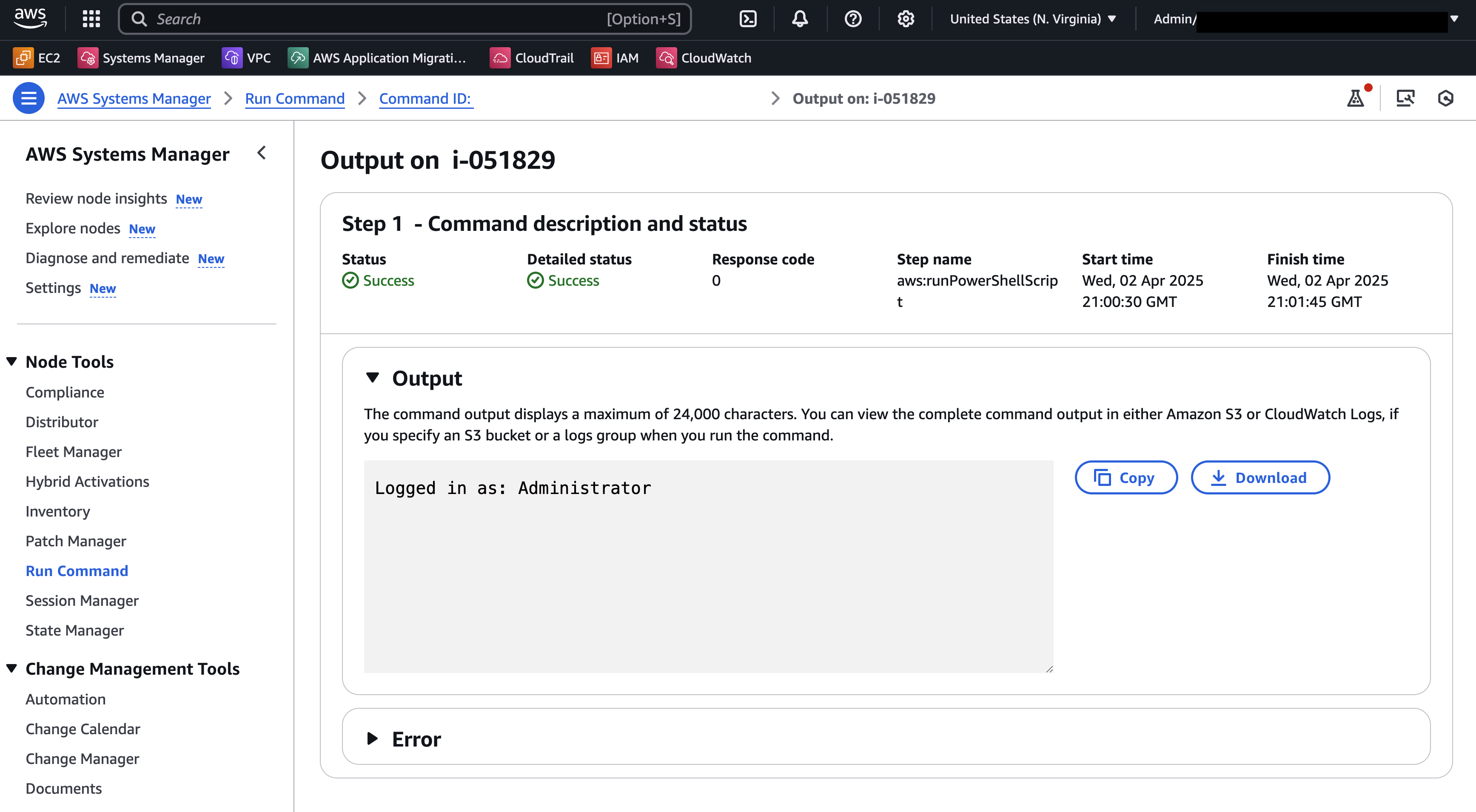
これらの例で使用される Secrets Manager シークレットは、以下のキーと値のペア形式で認証情報を保存します。
{"username":"XXXXXXXXX","password":"XXXXXXX"}
Secrets Manager シークレットの作成の詳細については、こちらを参照してください。
カスタム Run Command ドキュメントを使用して、カスタム認証情報を自動的に引き受け、PowerShell スクリプトを実行する
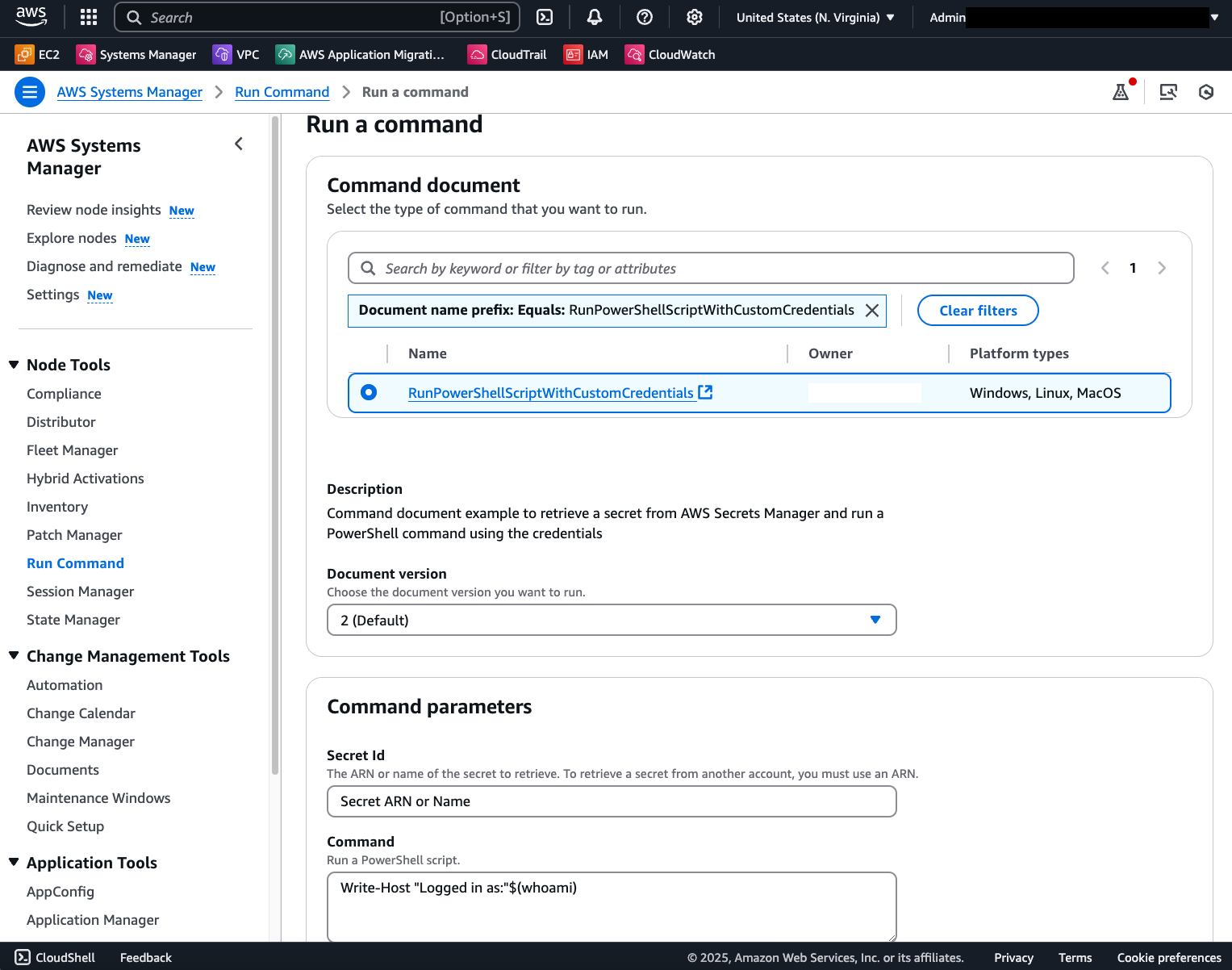
シークレットの取得と認証情報の操作を自動化するには、以下の内容でカスタム Run Command ドキュメントを作成できます。
schemaVersion: '2.2'
description: "Command document example to retrieve a secret from AWS Secrets Manager and run a PowerShell command using the credentials"
parameters:
  SecretId:
    type: String
    description: The ARN or name of the secret to retrieve. To retrieve a secret from another account, you must use an ARN.
    default: Secret ARN or Name
  Command:
    type: String
    description: "Run a PowerShell script."
    default: Write-Host "Logged in as:"$(whoami)
    displayType: textarea
mainSteps:
  - action: aws:runPowerShellScript
    name: ExecutePowerShellCommand
    inputs:
      runCommand:
        - |
           # Retrieves AWS Secrets Manager secret
            $SecretContent = Get-SECSecretValue -SecretId {{SecretId}} -ErrorAction Stop | Select-Object -ExpandProperty 'SecretString' | ConvertFrom-Json -ErrorAction Stop

            # Creates credentials object
            $Username = $SecretContent.username
            $UserPassword = ConvertTo-SecureString ($SecretContent.password) -AsPlainText -Force
            $Credentials = New-Object -TypeName 'System.Management.Automation.PSCredential' ("$Env:ComputerName\$Username", $UserPassword)

            # Creates a new PowerShell session on the local computer using provided credentials
            $Session = New-PSSession -ComputerName $Env:ComputerName -Credential $Credentials -ErrorAction Stop

            # Runs a command in the remote session to start a process and wait for completion
            Invoke-Command -Session $Session -ScriptBlock { {{Command}} } -ErrorAction Stop
その結果、各呼び出しに Secret ARN とスクリプトの内容のみを必要とするテンプレートドキュメントが作成されます。
コマンドが正常に実行されると、次の結果が表示されます。