在 Systems Manager Run Command 中以自定义 Windows 用户身份调用 PowerShell 命令
默认情况下,Systems Manager Run Command 使用本地 SYSTEM 账户在 Windows 托管节点上运行命令。但在某些场景中,运维工程师需要在运行命令时使用自定义用户权限。例如,执行 Active Directory 域任务或缩小命令会话的权限范围。
在 PowerShell 中处理用户凭证时,我们建议将凭证存储在 AWS Secrets Manager 中,并从脚本中以编程方式检索。这样可以避免在执行过程中的任何时刻以明文形式暴露凭证。
托管节点必须具有访问 Secrets Manager 中密钥的权限。权限可以授予附加的 EC2 IAM 实例配置文件、默认主机管理配置 (DHMC) 服务设置中指定的 IAM 服务角色,或混合托管节点的 IAM 服务角色。有关更多信息,请参见 AWS Secrets Manager 中密钥的 IAM 策略示例。
以下示例展示了一个从 Secrets Manager 检索域凭证并使用这些凭证运行 PowerShell 脚本的脚本:
# Retrieves AWS Secrets Manager secret
$SecretContent = Get-SECSecretValue -SecretId <SECRET_ARN> -ErrorAction Stop | Select-Object -ExpandProperty 'SecretString' | ConvertFrom-Json -ErrorAction Stop

# Creates credentials object
$Username = $SecretContent.username
$UserPassword = ConvertTo-SecureString ($SecretContent.password) -AsPlainText -Force
$Credentials = New-Object -TypeName 'System.Management.Automation.PSCredential' ($Username, $UserPassword)

# Run commands with Domain Credentials
Invoke-Command -Authentication 'CredSSP' `
    -ComputerName $env:COMPUTERNAME `
    -Credential $Credentials `
    -ScriptBlock {Write-Host "Logged in as:"$(whoami)}
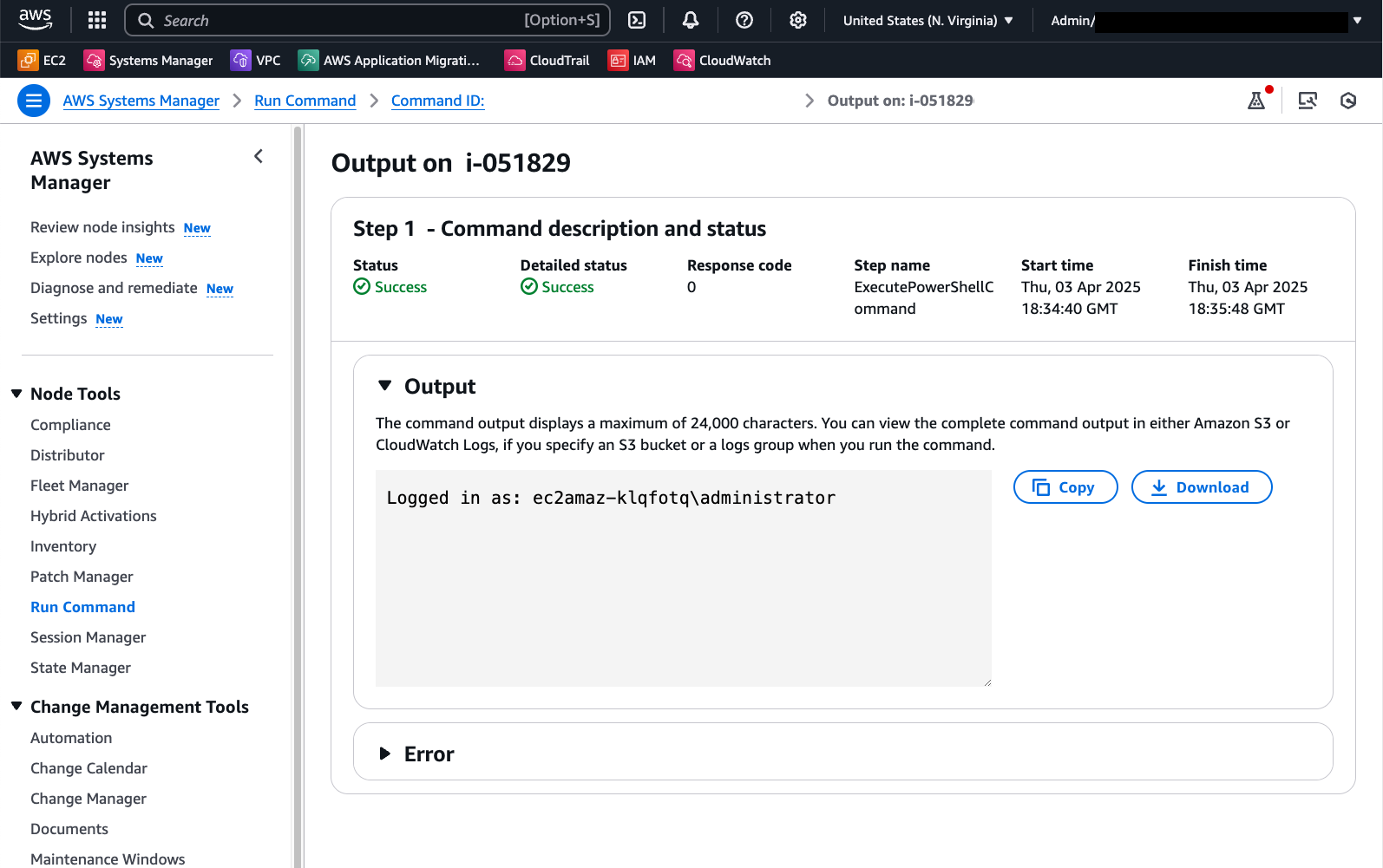
Run Command 中的输出显示成功以所需的域用户身份登录:
另一种方式是使用 PowerShell 会话 (PSSession)。以下代码同样使用 Secrets Manager 检索本地管理员凭证并在此上下文中运行命令:
# Retrieves AWS Secrets Manager secret
$SecretContent = Get-SECSecretValue -SecretId <SECRET_ARN> -ErrorAction Stop | Select-Object -ExpandProperty 'SecretString' | ConvertFrom-Json -ErrorAction Stop

# Creates credentials object
$Username = $SecretContent.username
$UserPassword = ConvertTo-SecureString ($SecretContent.password) -AsPlainText -Force
$Credentials = New-Object -TypeName 'System.Management.Automation.PSCredential' ("$Env:ComputerName\$Username", $UserPassword)

# Creates a new PowerShell session on the local computer using provided credentials
$Session = New-PSSession -ComputerName $Env:ComputerName -Credential $Credentials -ErrorAction Stop

# Runs a command in the remote session to start a process and wait for completion
Invoke-Command -Session $Session -ScriptBlock { Write-Host "Logged in as: $env:USERNAME" }
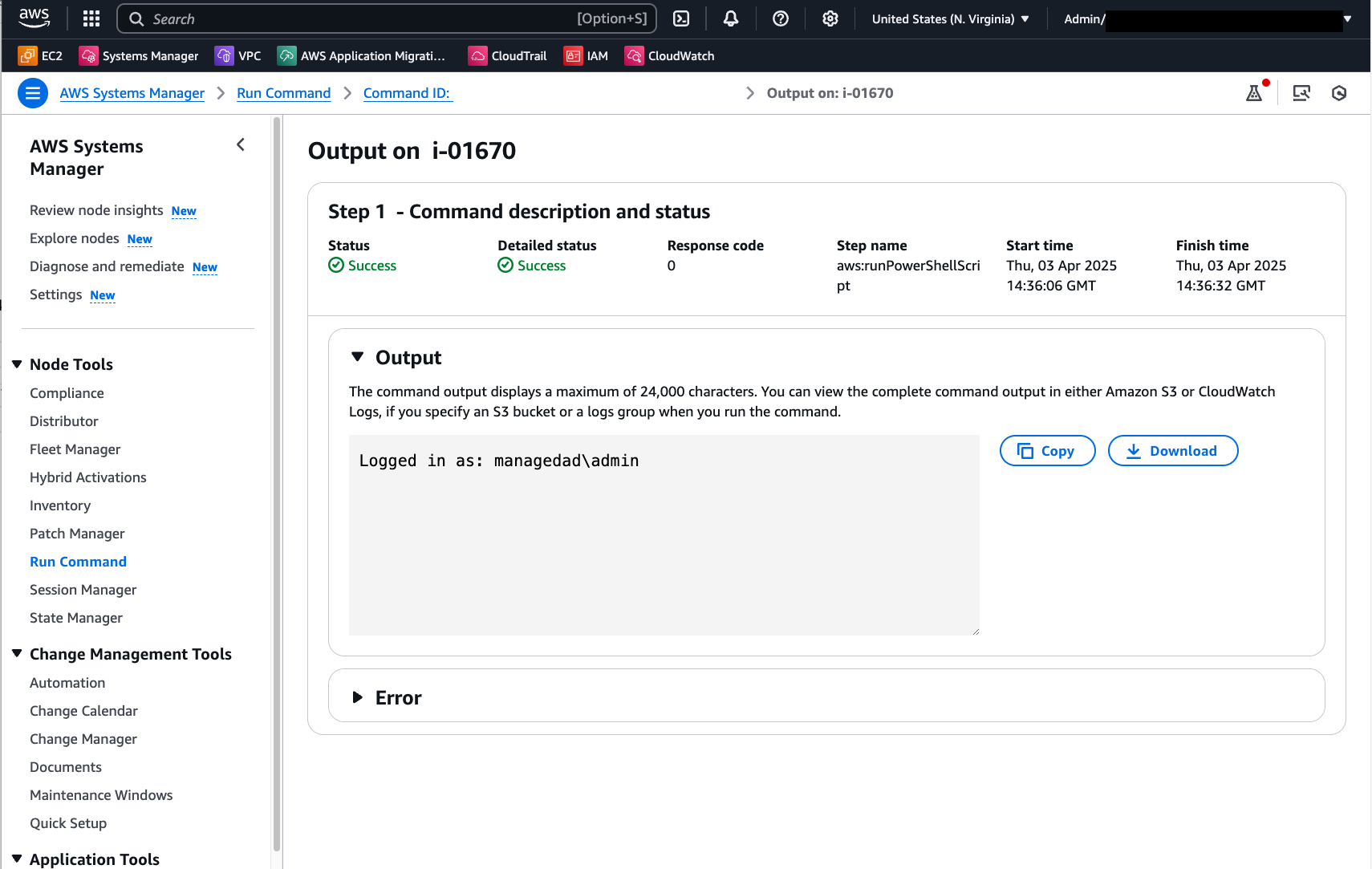
下图显示了运行此 PowerShell 脚本后的 Run Command 输出:
这些示例中使用的 Secrets Manager 密钥以以下键值对格式存储凭证:
{"username":"XXXXXXXXX","password":"XXXXXXX"}
有关创建 Secrets Manager 密钥的更多详情,请参见此处。
使用自定义 Run Command 文档自动假冒自定义凭证并运行 PowerShell 脚本
要自动化密钥检索和凭证操作,您可以创建一个包含以下内容的自定义 Run Command 文档:
schemaVersion: '2.2'
description: "Command document example to retrieve a secret from AWS Secrets Manager and run a PowerShell command using the credentials"
parameters:
  SecretId:
    type: String
    description: The ARN or name of the secret to retrieve. To retrieve a secret from another account, you must use an ARN.
    default: Secret ARN or Name
  Command:
    type: String
    description: "Run a PowerShell script."
    default: Write-Host "Logged in as:"$(whoami)
    displayType: textarea
mainSteps:
  - action: aws:runPowerShellScript
    name: ExecutePowerShellCommand
    inputs:
      runCommand:
        - |
           # Retrieves AWS Secrets Manager secret
            $SecretContent = Get-SECSecretValue -SecretId {{SecretId}} -ErrorAction Stop | Select-Object -ExpandProperty 'SecretString' | ConvertFrom-Json -ErrorAction Stop

            # Creates credentials object
            $Username = $SecretContent.username
            $UserPassword = ConvertTo-SecureString ($SecretContent.password) -AsPlainText -Force
            $Credentials = New-Object -TypeName 'System.Management.Automation.PSCredential' ("$Env:ComputerName\$Username", $UserPassword)

            # Creates a new PowerShell session on the local computer using provided credentials
            $Session = New-PSSession -ComputerName $Env:ComputerName -Credential $Credentials -ErrorAction Stop

            # Runs a command in the remote session to start a process and wait for completion
            Invoke-Command -Session $Session -ScriptBlock { {{Command}} } -ErrorAction Stop
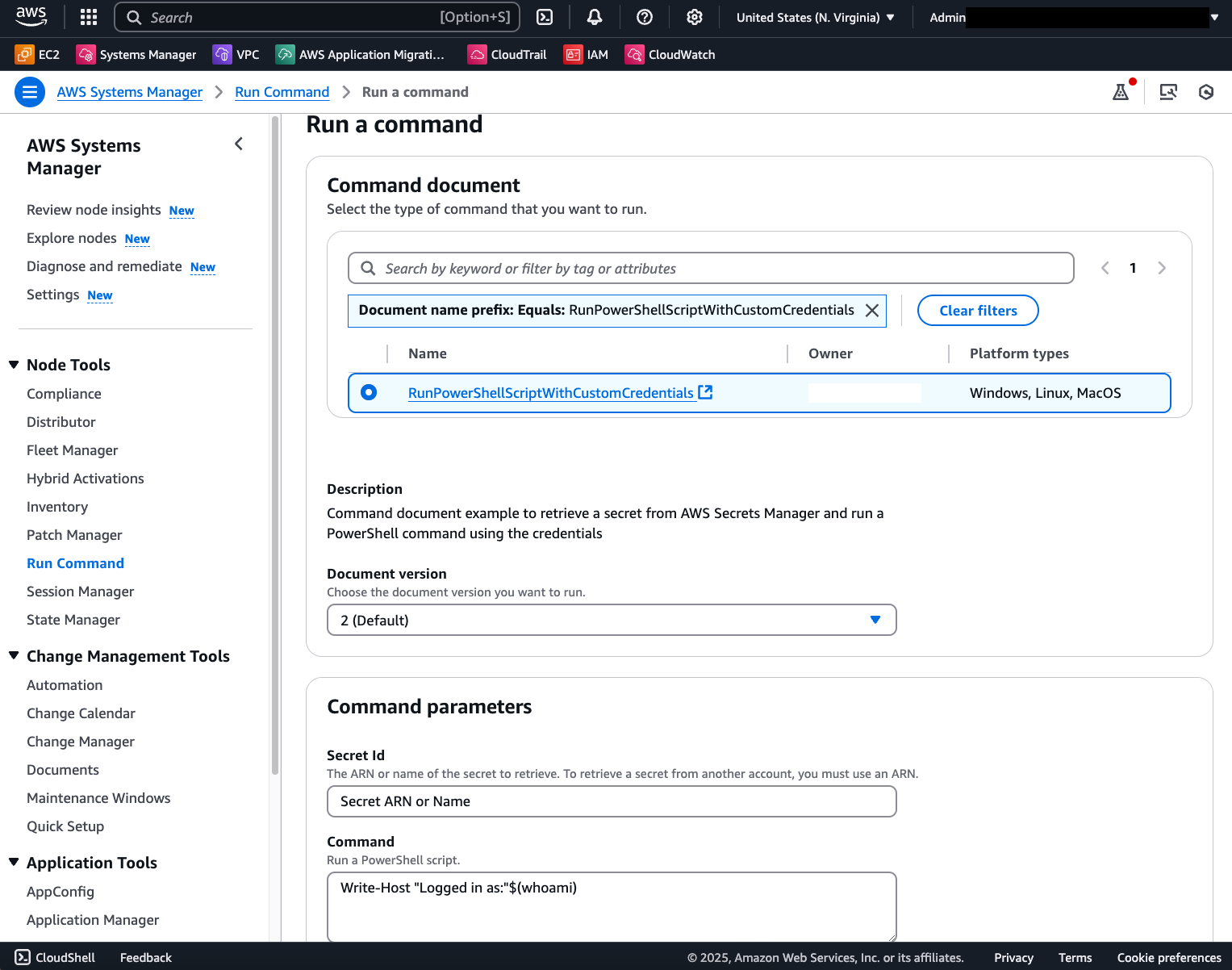
最终,您将拥有一个模板文档,每次调用时只需提供密钥 ARN 和脚本内容:
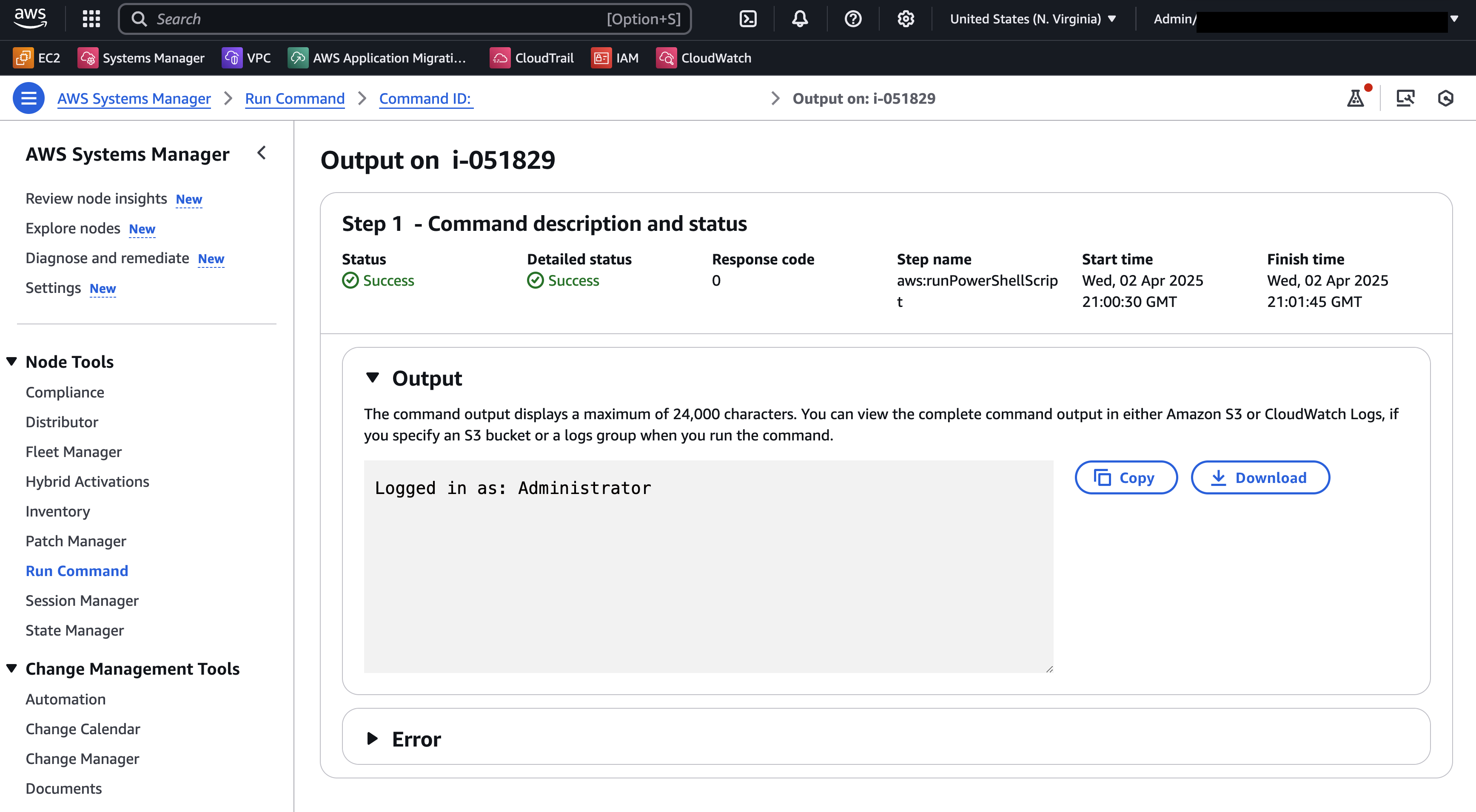
成功的命令调用将显示以下结果: